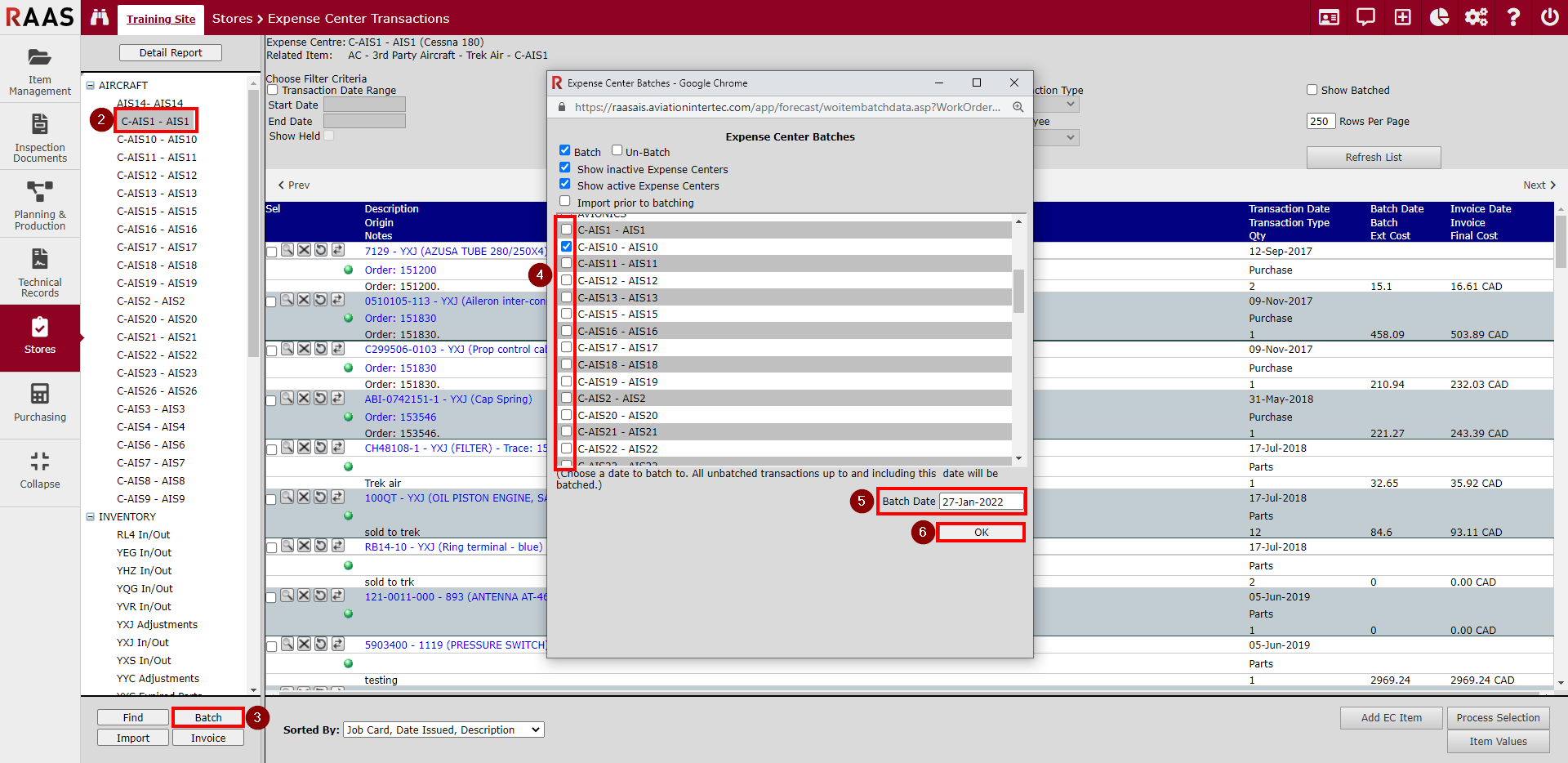
Batching is the process of grouping together all expense center items that occurred in a specified time period. Un-batching may be required in cases where costs need to be adjusted or an expense center item needs to be credited or removed from the batched grouping.
Batching Expense Center Items
This method of batching will batch all Expense Center Transactions that are not yet batched up to and including the Batch Date entered for all Expense Centers selected. Note that while multiple Expense Centers can be batched at once using this method, a unique batch number will be given to the transactions in each Expense Center.
-
Click on Stores and select Expense Center Transactions.
-
Generate Expense Center Transactions by clicking Aircraft, Inventory, or Other/Misc and selecting one of the Expense Centers from the tree.
-
Click the Batch button.
-
Select all Expense Centers to be contained within the batch.
-
Enter a Batch Date. All unbatched transactions up to and including this date will be batched.
-
Click OK.
Manual Selection Batching
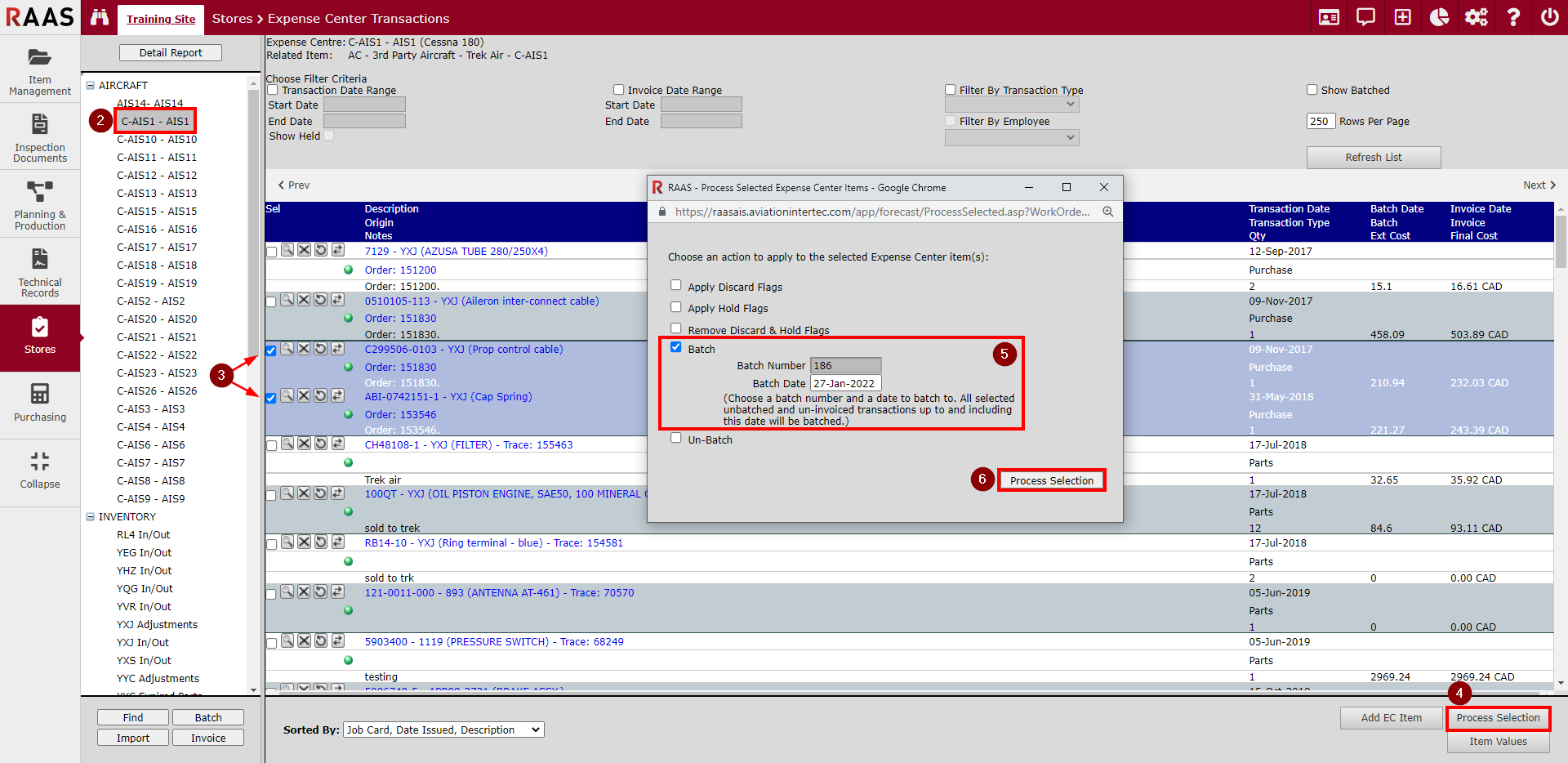
When there are imported Expense Center items that need to be batched separately, it is best to use the selection batching process. Using this method, only Expense Center Transactions from a single Expense Center can be batched at one time.
-
Click on Stores and select Expense Center Transactions.
-
Generate Expense Center Transactions by clicking Aircraft, Inventory, or Other/Misc and selecting one of the Expense Centers from the tree.
-
Select the Expense Center items to be batched together by clicking the checkbox at the left of each Expense Center item. The row will be highlighted in blue when selected.
-
Click the Process Selection button at the bottom of the Expense Center Transactions window.
-
Select Batch, if it is not already selected. If necessary, edit the Batch Date.
-
Click the Process Selection button.
Un-Batching Expense Center Items
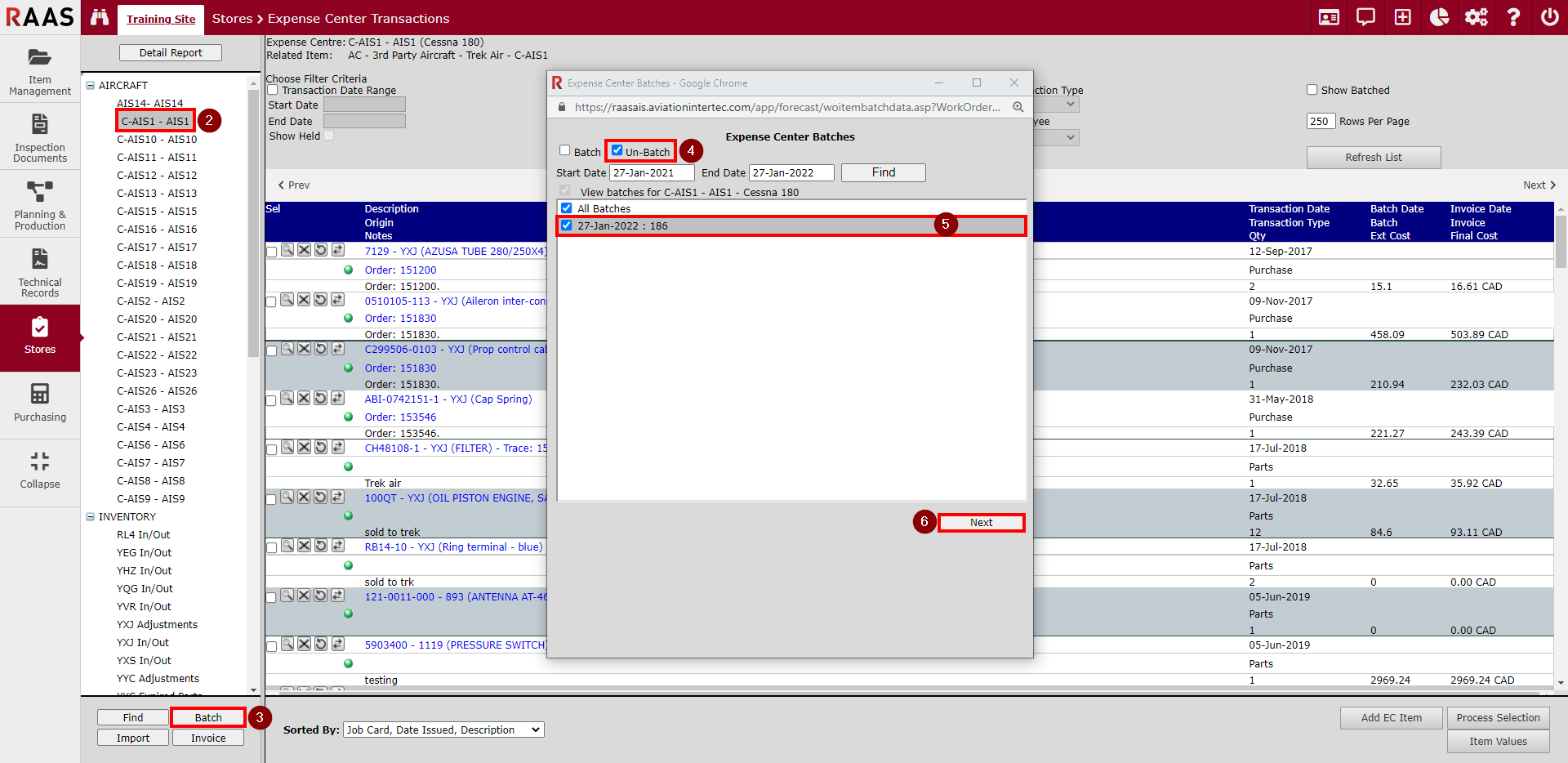
Un-Batching can only be completed for one Expense Center at a time. If an Expense Center has not been selected and the user attempts to un-batch, the listing will not populate. The user must first select the desired Expense Center Item from the list before attempting to un-batch.
-
Click on Stores and select Expense Center Transactions.
-
Generate Expense Center Transactions by clicking Aircraft, Inventory, or Other/Misc and selecting one of the Expense Centers from the tree.
-
Click the Batch button.
-
Select Un-batch.
-
If necessary, enter a start and end date to filter the list. Select the batches that need to be un-batched.
-
Click Next.
-
Click OK when notified that the un-batching is complete.
Manual Selection Un-Batching
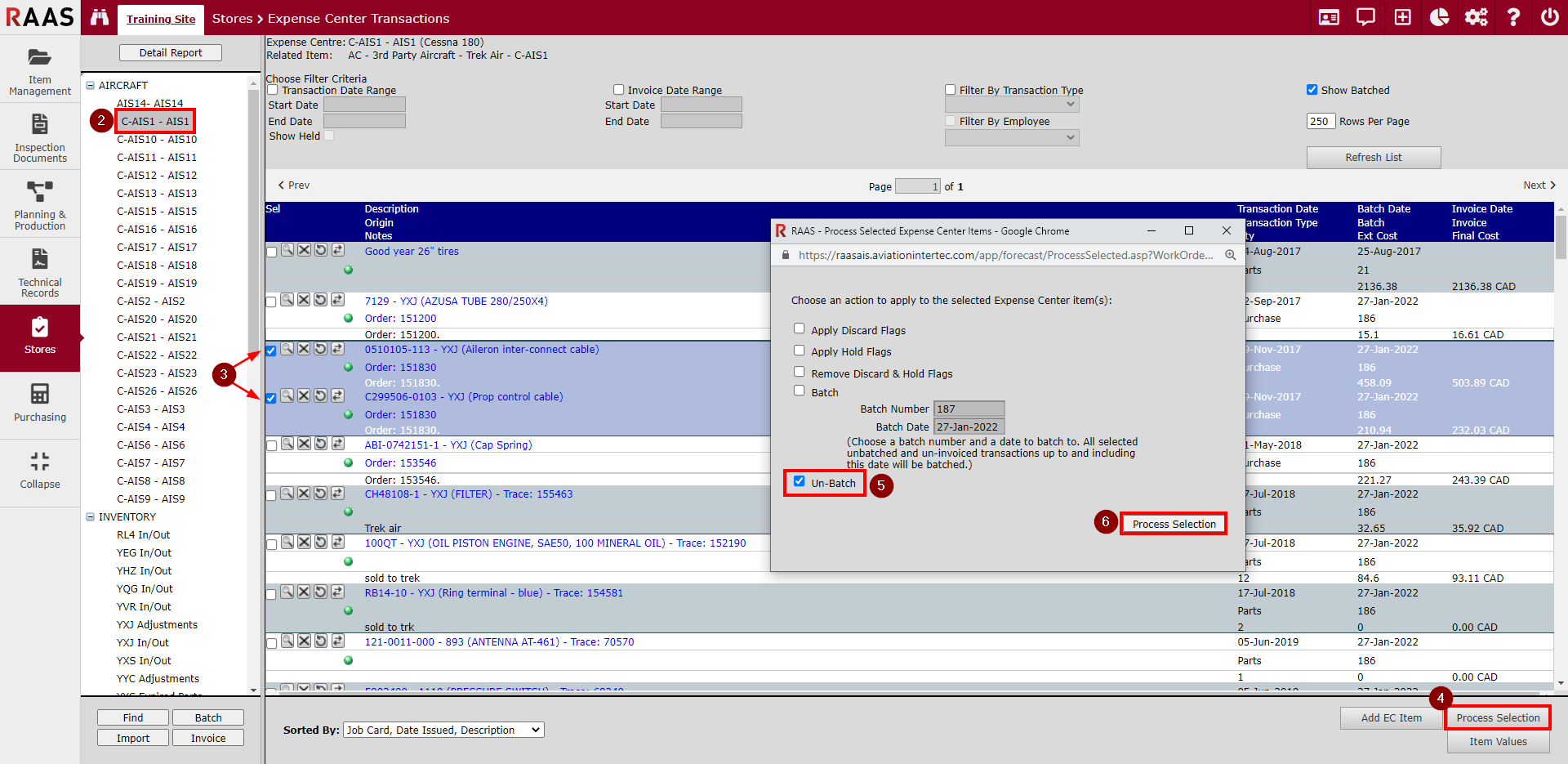
This method allows the user to un-batch specific Expense Center Items without un-batching all items in the batch.
-
Click on Stores and select Expense Center Transactions.
-
Generate Expense Center Transactions by clicking Aircraft, Inventory, or Other/Misc and selecting one of the Expense Centers from the tree.
-
Select the Expense Center item(s) to be un-batched. The row will be highlighted in blue when selected.
-
Click the Process Selection button at the bottom of the Expense Center Transactions window.
-
Check Un-batch.
-
Click the Process Selection button.
-
Click OK when notified that the items have been processed.