
The Inventory Value submodule provides a configurable view of the total inventory value across bases, locations, and inventory types. It allows users to analyze inventory using different valuation methods and export the results for reporting and reconciliation.
Navigation
-
Click Stores and select Inventory Value.
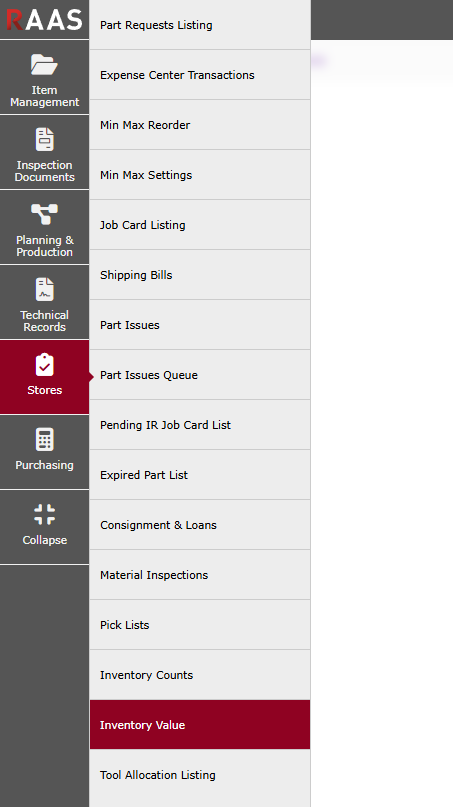
Figure 1: Navigation
Filters
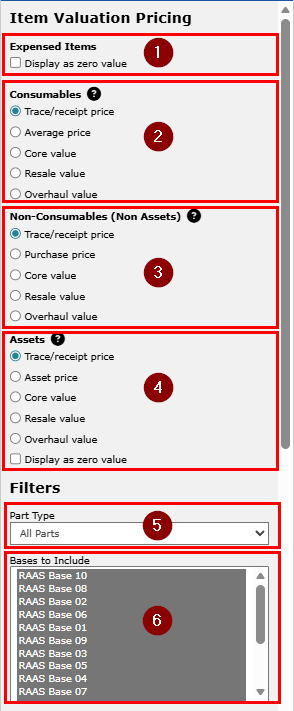
The Item Valuation Pricing filters control which inventory records are included in the summary and how they are valued.
-
Expensed Items - Display as zero value
When selected, items that have already been expensed are displayed with a zero value. An item is considered expensed when the Not Yet Expensed flag on its Trace is turned off. -
Consumables
Available valuation methods:-
Trace/receipt price - uses the most recent trace/receipt price
-
Average price - uses the average cost across Traces (this value can be viewed from the SN Pricing window)
-
Core value
-
Resale value
-
Overhaul value
Note: Core value, Resale value, and Overhaul value can all be viewed and adjusted from the SN Pricing window.
-
-
Non-Consumables (Non-Assets)
Available valuation methods:-
Trace/receipt price - uses the most recent trace/receipt price
-
Purchase price - price from original purchase (this value can be viewed from the SN Pricing window)
-
Core value
-
Resale value
-
Overhaul value
Note: Core value, Resale value, and Overhaul value can all be viewed and adjusted from the SN Pricing window.
-
-
Assets
Available valuation methods:-
Trace/receipt price - uses the most recent trace/receipt price
-
Asset price - price from original purchase (this value can be viewed from the SN Pricing window)
-
Core value
-
Resale value
-
Overhaul value
-
Display as zero value - this selection displays all assets as zero value
Note: Core value, Resale value, and Overhaul value can all be viewed and adjusted from the SN Pricing window.
Note: Parts are treated as Assets when the Is Rotable and/or Asset flag is enabled on the Part Description and the Item is an asset flag is enabled on the SN Pricing window.
-
-
Part Type
Allows filtering for the following part types:-
All Parts except Assets
-
All Parts
-
Consumables Only
-
Non-Consumables Only
-
Non-Consumable Non-Assets Only
-
Assets Only
-
Ground Equipment Only
-
-
Bases to Include
Lists your company's bases. Click to select a single base, or hold Ctrl and click to select multiple bases.
-
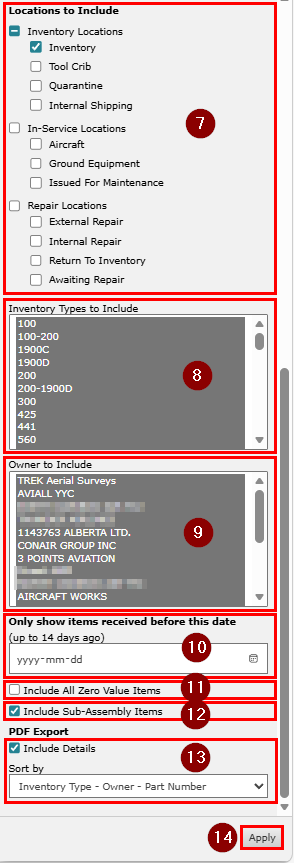
Locations to Include
Allows filtering for specific locations within RAAS, including: -
Inventory Locations
-
Inventory
-
Tool Crib
-
Quarantine
-
Internal Shipping
-
-
In-Service Locations
-
Aircraft
-
Ground Equipment
-
Issued for Maintenance
-
-
Repair Locations
-
External Repair
-
Internal Repair
-
Return To Inventory
-
Awaiting Repair
-
-
Inventory Types to Include
Lists your company's Inventory Types. Click to select a single base, or hold Ctrl and click to select multiple Inventory Types. -
Owners to Include
Lists the owners of parts in your company. Click to select a single base, or hold Ctrl and click to select multiple owners. Note that a part’s owner is set on the Trace of the part. -
Only show items received before this date
Enter a date (up to 14 days in the past) to exclude parts received after that date. Leave the field blank to include all dates. -
Include All Zero Value Items
Selecting this filter will include zero value items in the results, while deselecting this filter will only include parts with a non-zero value. -
Include Sub-Assembly Items
Selecting this filter will include all sub-assembly items, while deselecting this filter will include only the header for assemblies. -
PDF Export
-
Include Details
-
Selecting this filter will include the details for each part when printing the PDF report, while leaving the filter deselected will only show totals.
-
-
Sort by
-
The dropdown allows you to choose a sorting order for the PDF Export.
-
-
-
Apply
Clicking Apply will regenerate the Inventory Summary with the filters selected.
Inventory Summary
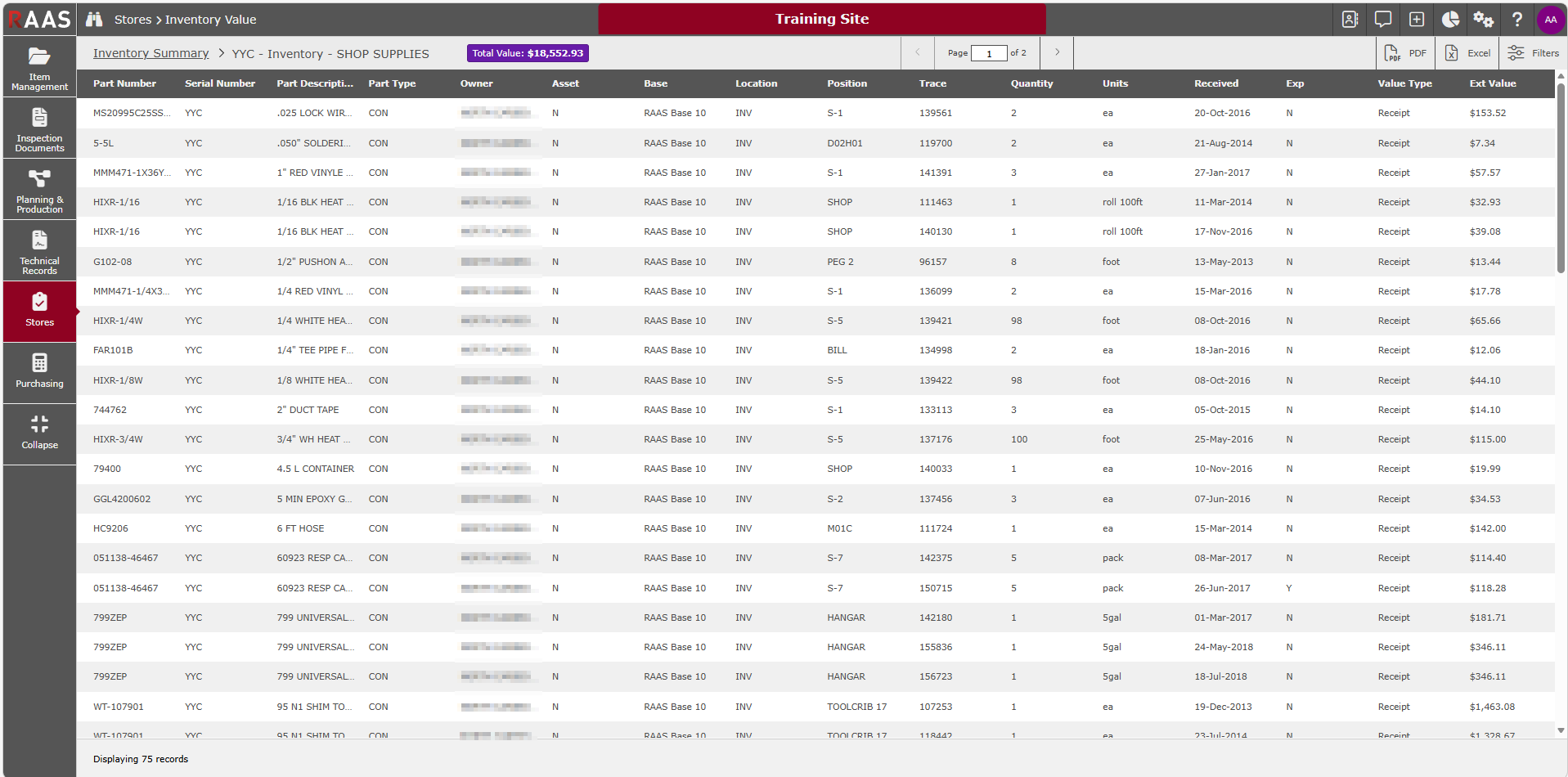
After applying your filters, results appear in a summary view showing totals for each Base / Location Type / Inventory Type combination. The Total Value of all rows is displayed at the top of the screen.
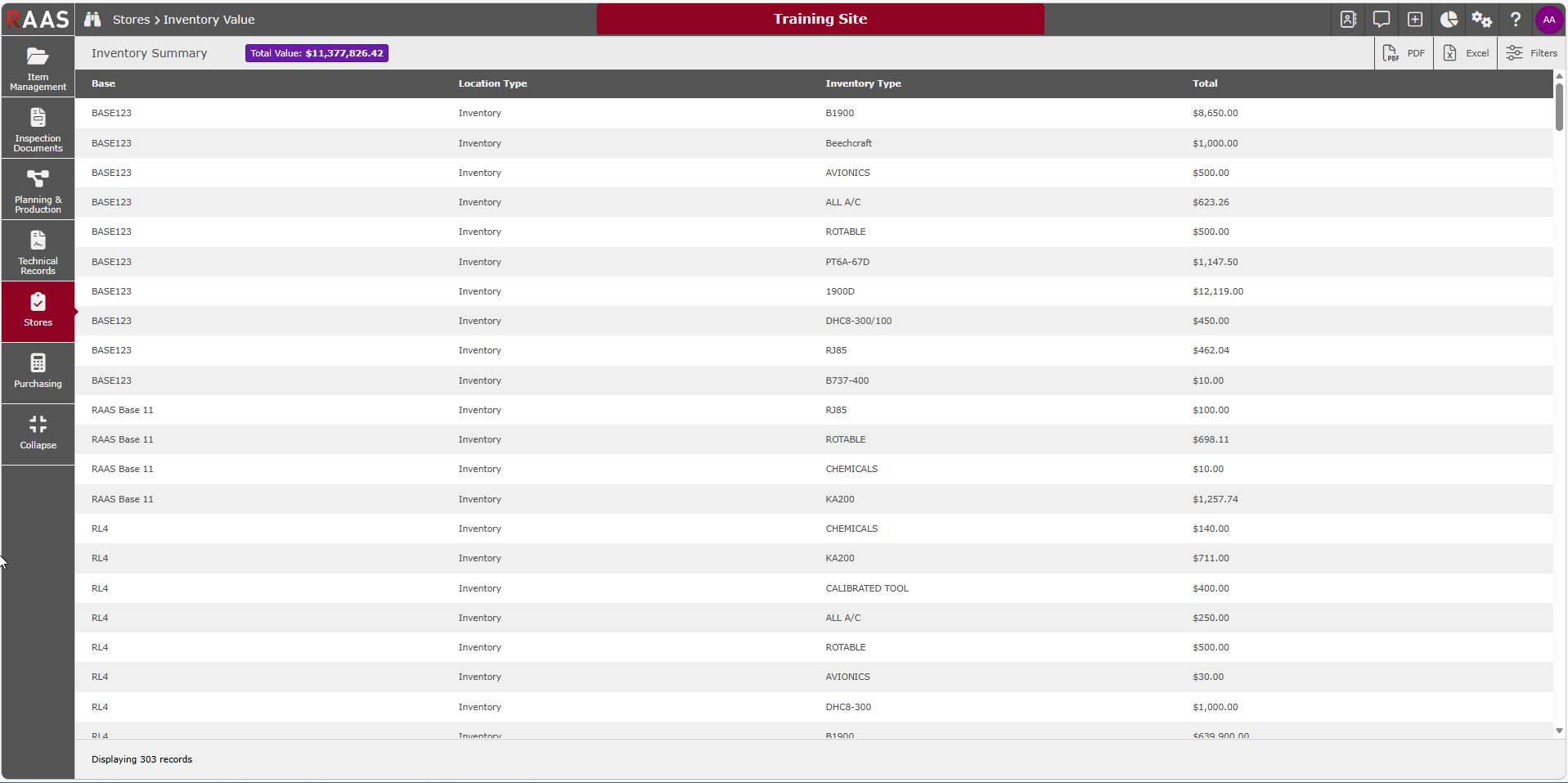
Click any row (Base, Location Type, Inventory Type, or Total) to drill down into the individual parts. In either view, click a column header to sort the results.
Report Outputs
Click the PDF or Excel button at the top right of the screen to export your results.
-
PDF - Can be summarized or detailed, with multiple sort options configured in the PDF Export section of the Filters pane.
-
Excel - Always includes full details for all parts in the results.