
Overview
The Batch Closure Utility allows users to efficiently apply rectification text to multiple new or open Jobs and close those jobs in a single operation. This functionality streamlines workflows, improves consistency, and reduces manual effort when rectifying and closing repetitive jobs.
Using the Batch Closure Utility
Note
Please note that the Batch Closure Utility will not allow for the indication of parts installed or removed. For indication of parts installed or removed, please create a manual rectification for that Job Card.
Prerequisites
-
Permissions: Ensure you have the appropriate user securities for batch operations and creating Closure LLRs.
-
Planning: Verify the Work Pack and Job Cards are ready for batch operations.
Steps for Mass Closure within a Work Pack
-
Access the Work Pack:
-
Navigate to the Work Pack containing the Job Cards to be closed.
-
-
Initiate Batch Closure:
-
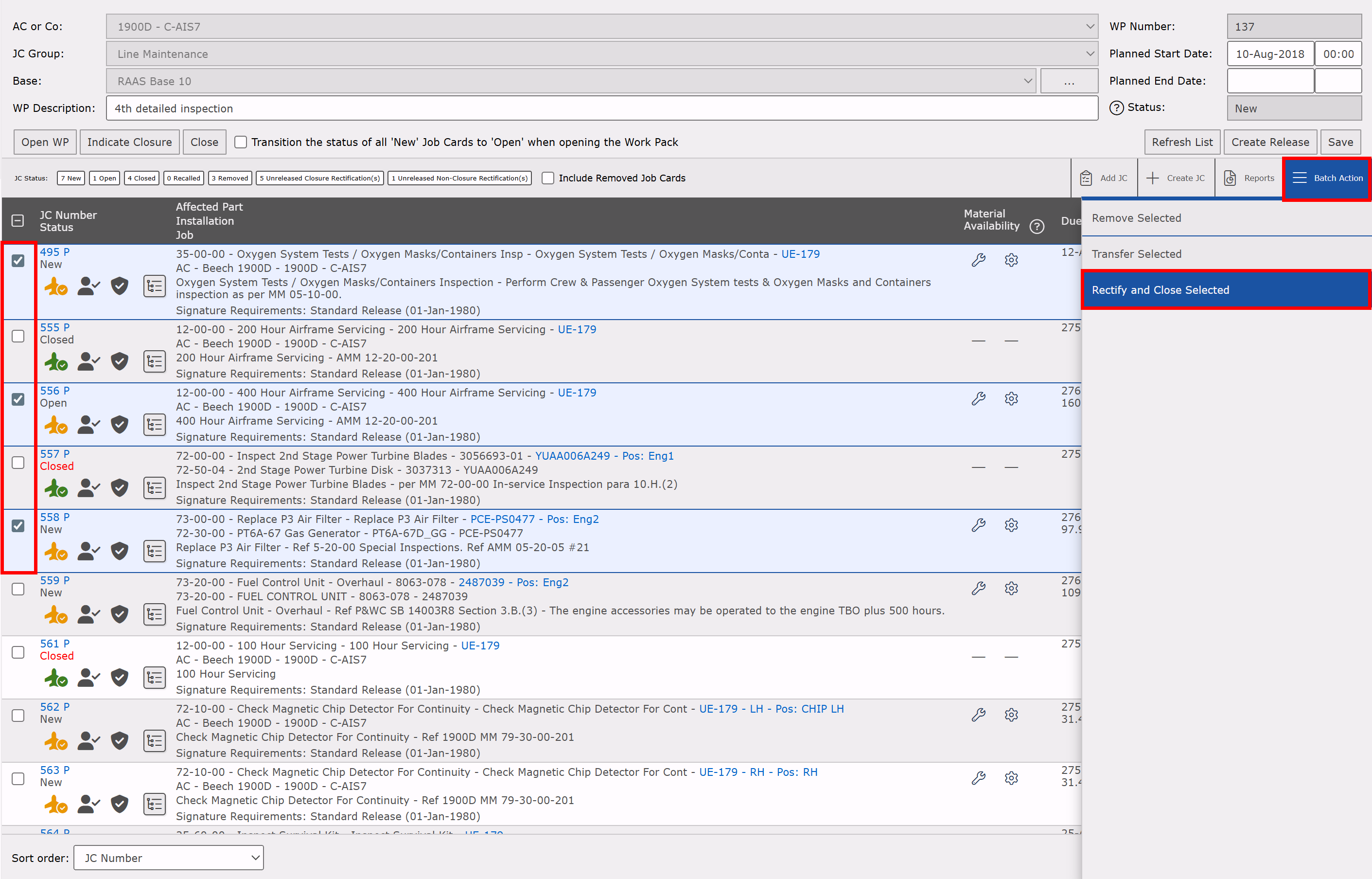
Select the Job Cards required for Closure
-
Click on Batch Action option in the Work Pack menu and then Rectify and Close Selected.
-
-
Apply Rectification Text:
-
If using predefined rectification text for a planned task:
-
Ensure the Job Cards have a Default Closure Rectification set at the Job Card Template.
-
-
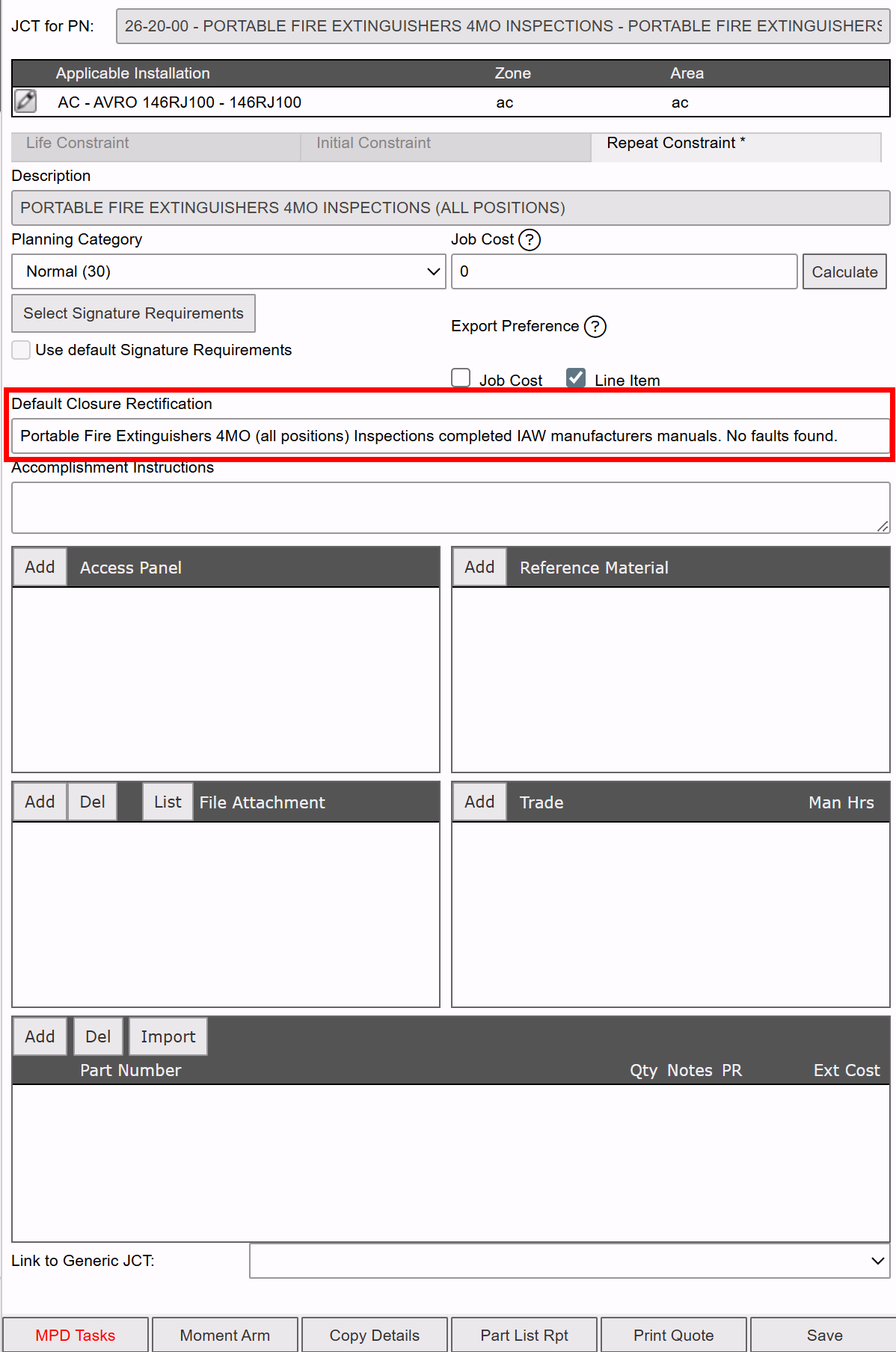
Figure 2: Default Closure Rectification -
The utility will automatically apply the text.
-
Carry out any modifications to the text as required.
-
-
For custom rectifications:
-
Enter the desired text manually in the provided field for each Job Card.
-
-
-
Complete Signee Details
-
Select the signing user for the associated Job Card Signature Requirement.
-
If required, indicate signees as Work Completed By employees.
-
-
Complete the Operation:
-
Click Apply Batch Closure to finalize the batch operation.
-
At this point, RAAS will create a closure rectification for each Job Card. This closure rectification will be available for release within a Maintenance Release and within Technical Records for application to the Technical Log Book.
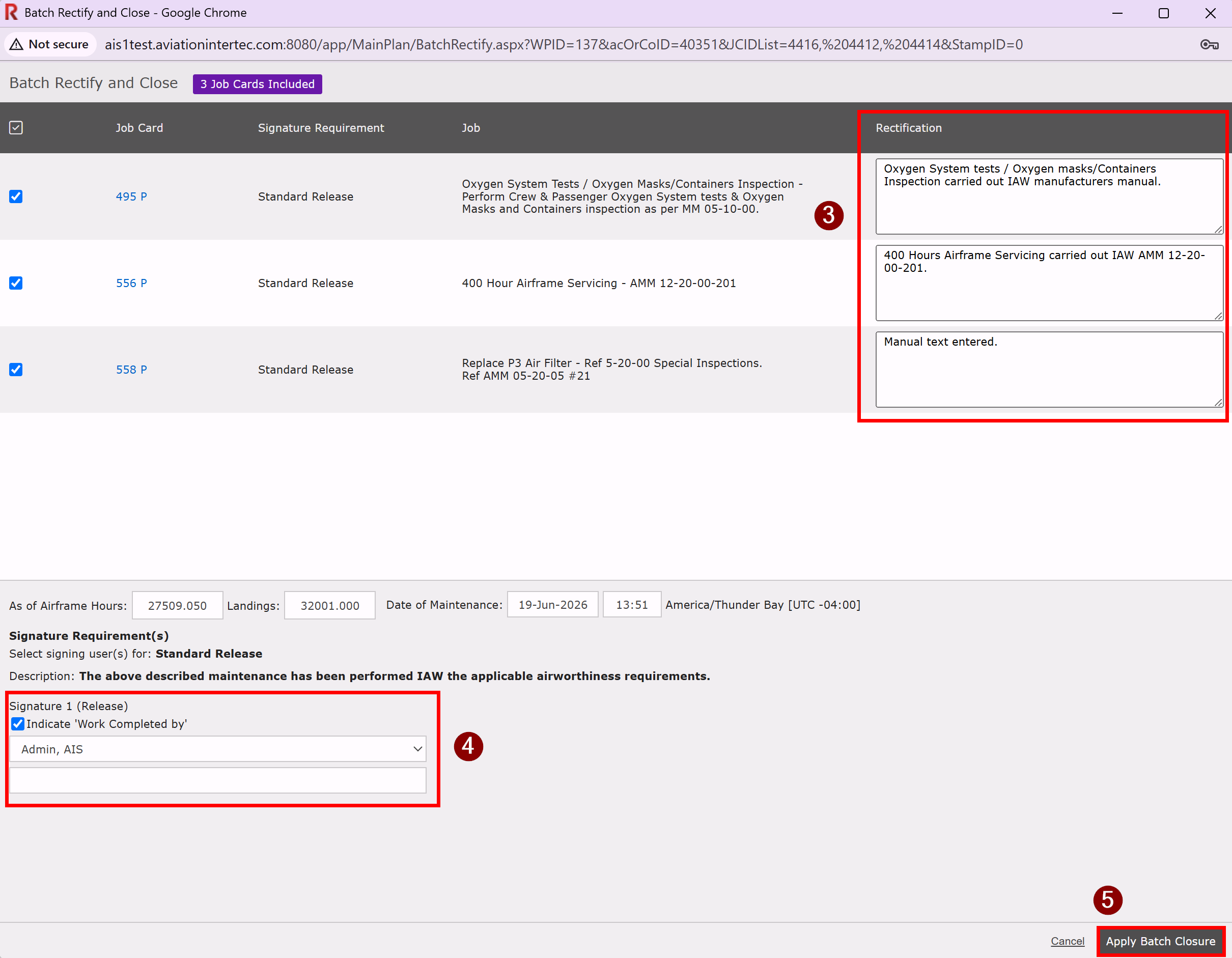
Figure 3: Rectify and Close
-
Additional Features
-
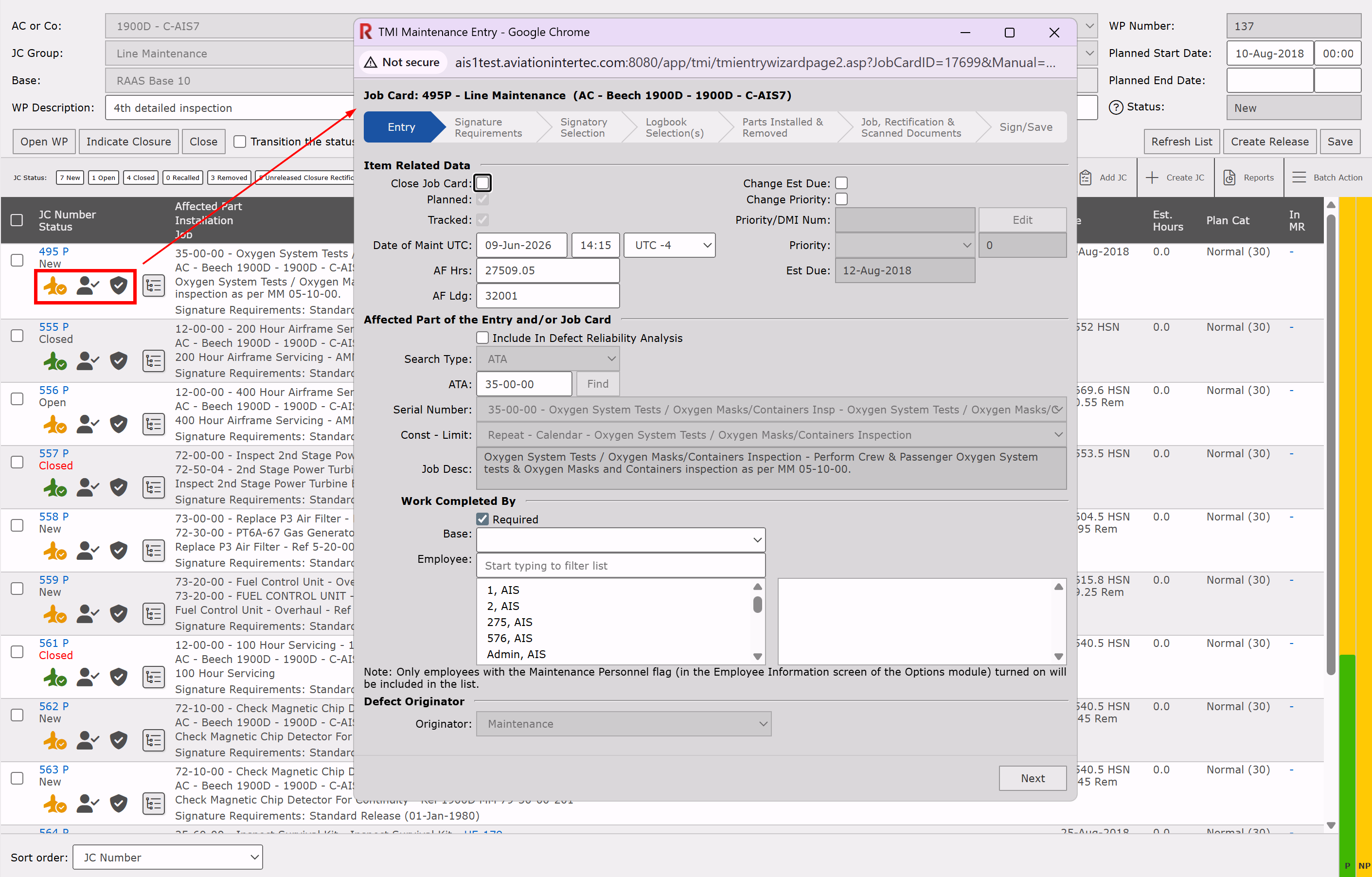
Using the Job Card Listing Icon:
-
Locate the Job Card in the Work Pack Listing.
-
Click the icon to:
-
Create or adjust rectifications.
-
Apply necessary signatures.
-
Review signed rectifications.
-
-
Tips and Best Practices
-
Set Default Closure Rectifications: Ensure Job Card Templates are configured with appropriate default rectifications to save time.
-
Monitor Header Statistics: Use the enhanced statistics to quickly identify pending rectifications and review the current completion status of the Work Pack.
-
Apply Manual Closure Rectifications when Needed: The new icon functionality provides quick access to rectification and closure actions, minimizing navigation time.