
The Expense Center Detail Report allows you to report on Expense Center Transactions. The report can be generated for any selection of Expense Centers and will either show the batched or unbatched transactions for the selected Expense Centers. It can also be filtered further by Part Type and Transaction Type.
Navigation
-
Click Stores and select Expense Center Transactions.
-
Select an Expense Center.
-
Click Detail Report.
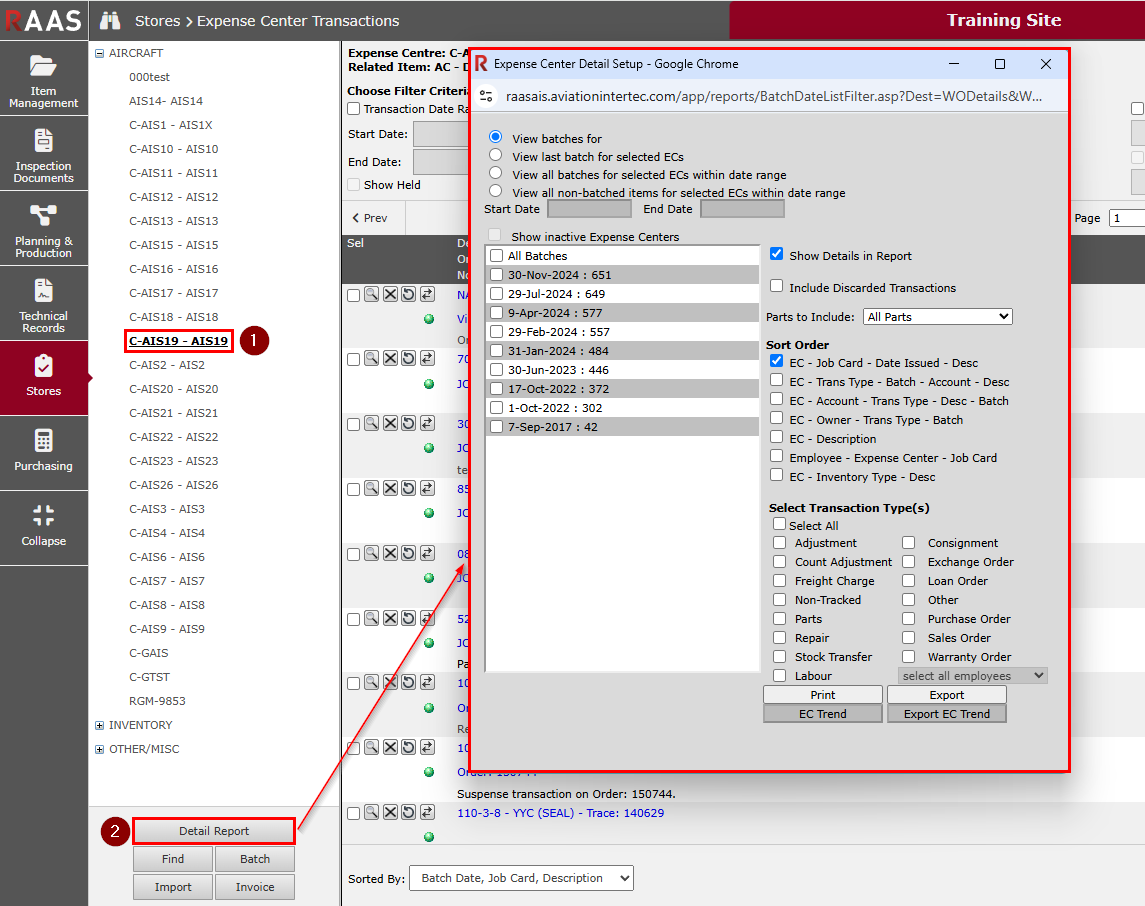
Figure 1: Expense Center Transactions - Detail Report - Navigation
Report Option 1 - View Batching for the Selected Expense Center
-
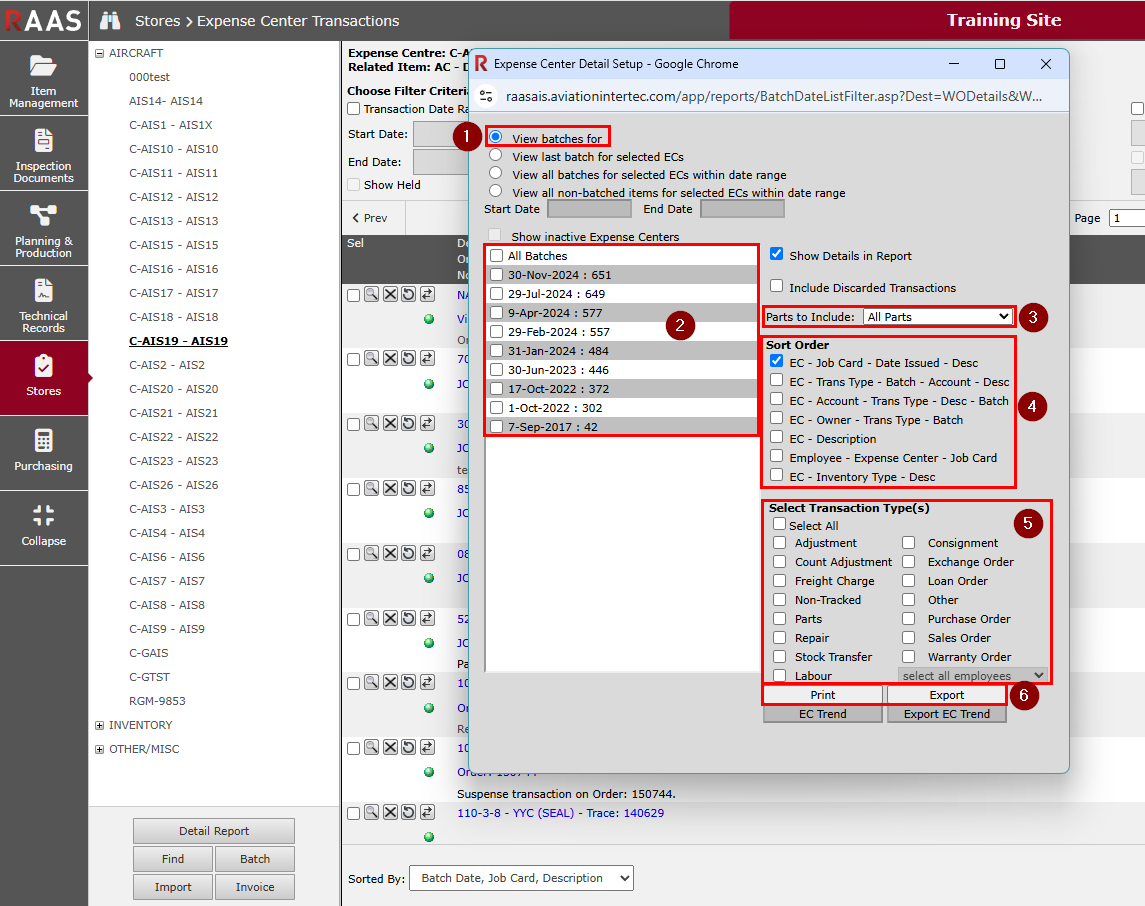
Select View batches for (this reports only on the Expense Center that is currently selected on screen).
-
Select the Batches to report against.
-
Select Parts to Include
-
All Parts
-
Consumables Only
-
Non-Consumables Only
-
-
Select a Sort Order.
-
Select Transaction Type(s) to include in the report.
-
Labour Transactions can further be filtered by specific employee
-
Labour Transactions can only be reported here when Company Settings - Use Employee Trade Labour is selected
-
-
-
Report output options:
-
Print - creates a PDF report
-
Export - creates an Excel report
-
Report Option 2 - Viewing the Last Batch for Selected Expense Centers
-
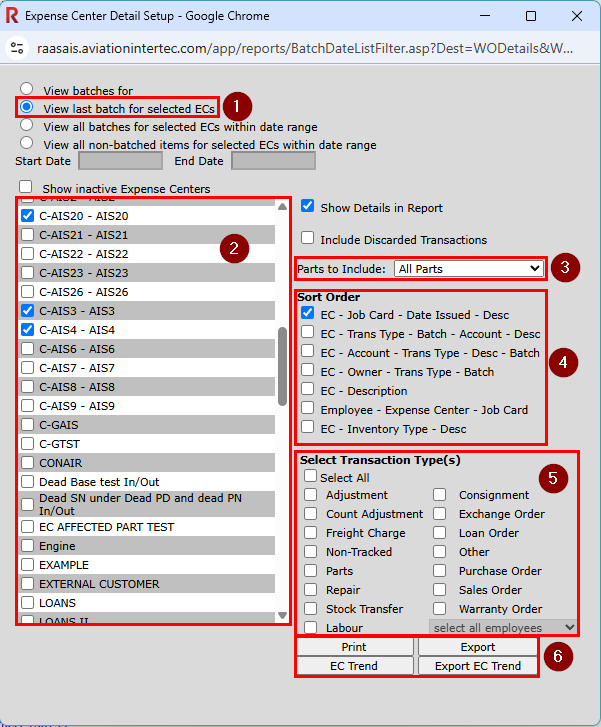
Select View last batch for selected ECs (this option will include transactions from the last batch for each of the selected Expense Centers).
-
Select the Expense Center(s) to report against.
-
Select Parts to Include
-
All Parts
-
Consumables Only
-
Non-Consumables Only
-
-
Select a Sort Order.
-
Select Transaction Type(s) to include in the report.
-
Labour Transactions can further be filtered by specific employee
-
Labour Transactions can only be reported here when Company Settings - Use Employee Trade Labour is selected
-
-
-
Report output options:
-
Print - produces a PDF report
-
Export - produces an Excel report
-
EC Trend - produces a PDF report with a graph
-
Export EC Trend - produces an organized Excel report
-
Report Option 3 - Viewing All Batches for Selected Expense Centers Over a Date Range
-
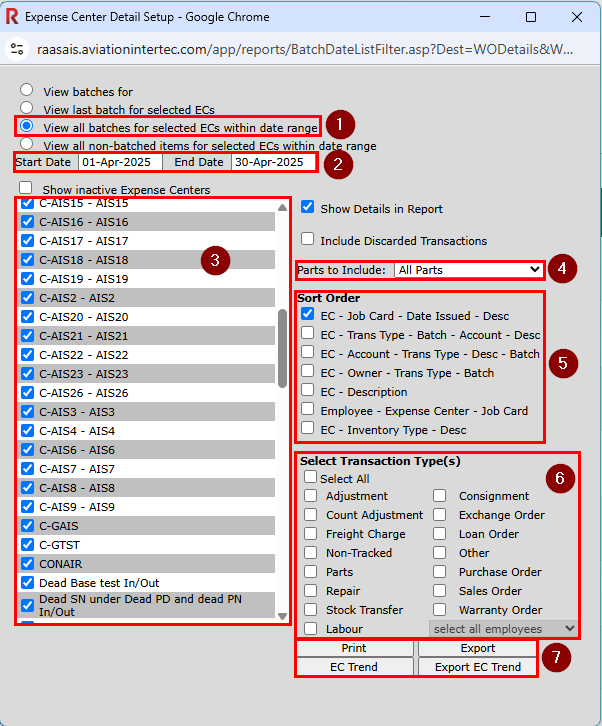
Select View all batches for selected ECs within date range (this will include all transactions for the selected ECs, regardless of the transaction date, that have a batch date within the date range entered).
-
Enter a Start Date and an End Date.
-
Select the Expense Center(s) to report against.
-
Select Parts to Include
-
All Parts
-
Consumables Only
-
Non-Consumables Only
-
-
Select a Sort Order.
-
Select the Transaction Type(s) to include in the report.
-
Labour Transactions can further be filtered by specific employee
-
Labour Transactions can only be reported here when Company Settings - Use Employee Trade Labour is selected
-
-
-
Report output options:
-
Print - produces a PDF report
-
Export - produces an Excel report
-
EC Trend - produces a PDF report with a graph
-
Export EC Trend - produces an organized Excel report
-
Report Option 4 - Viewing All Non-Batched Items for Selected Expense Centers Over a Date Range
-
Select View all non-batched items for selected ECs within date range (this will include all non-batched transactions with transaction dates within the date range entered).
-
Enter a Start Date and an End Date.
-
Select the Expense Center(s) to report against.
-
Select Parts to Include
-
All Parts
-
Consumables Only
-
Non-Consumables Only
-
-
Select a Sort Order.
-
Select the Transaction Type(s) to include in the report.
-
Labour Transactions can further be filtered by specific employee
-
Labour Transactions can only be reported here when Company Settings - Use Employee Trade Labour is selected
-
-
-
Report output options:
-
Print - produces a PDF report
-
Export - produces an Excel report
-
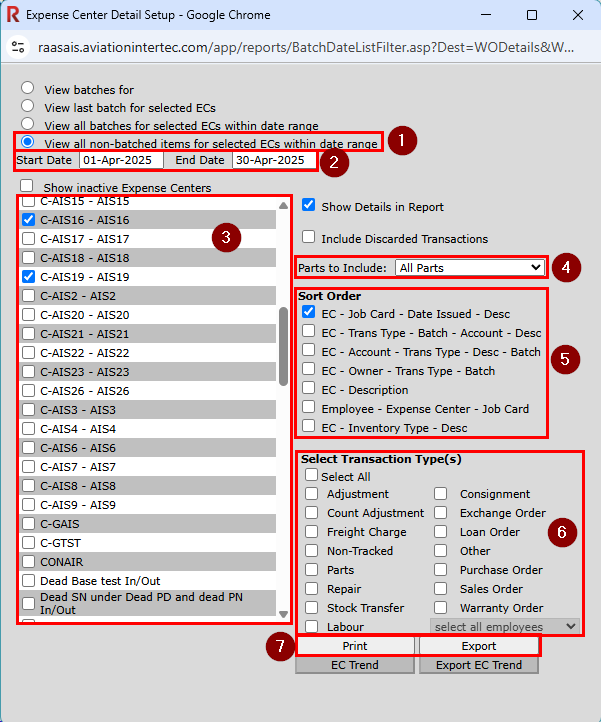
Note: Discarded Transactions will be filtered out by default, but can be included by selecting Include Discarded Transactions.