
The Build Assy and Verify features, located in the Serial Number detail window, compare an item's configuration with the information entered under the Config tab on the Part Number detail window - see Defining a Master Configuration.
Build Assy (Build Assembly)
The Build Assy feature in RAAS automates the creation of items listed in the View Config window at the Part Number level.
How It Works:
-
When you click the Build Assy button:
-
RAAS automatically generates the configuration and creates items that do not already exist on the header assembly.
-
After the process completes, RAAS displays the message: “The configuration build is complete. # part(s) were created. Please verify the assembly as some parts may require setup.”
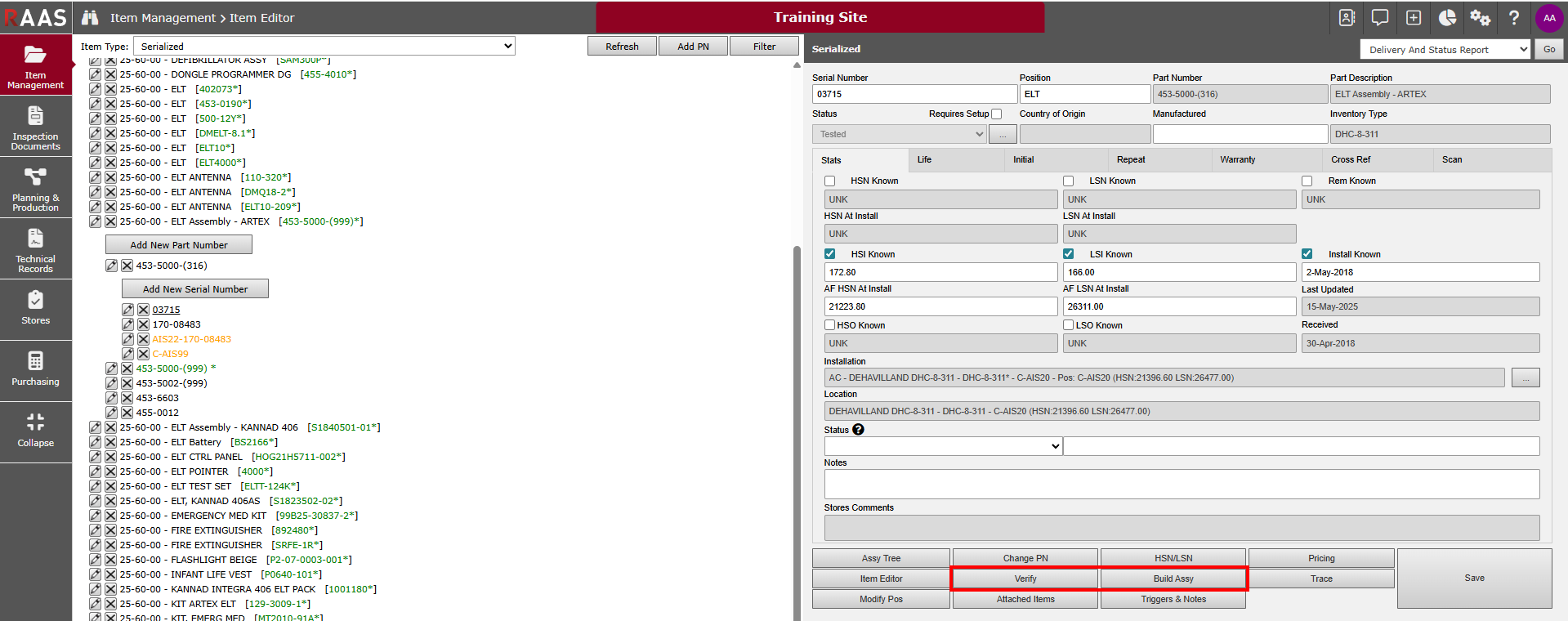
Figure 1: Build Assy and Verify
-
Notes:
-
If items are already attached, RAAS will create and attach any missing items from the Configuration, or if the assembly is already complete, RAAS will not create any items.
-
If a configuration item has a sub-configuration, then items will be attached to it as configured.
-
Newly created items inherit:
-
The Serial Number of the header part.
-
Any constraint information associated with the newly created item.
-
-
You may need to review the Serial Number Detail screens for these items to confirm accuracy and correct setup.
Verify
The Verify feature allows you to check the integrity of assemblies based on their configurations.
How It Works:
-
When you click the Verify button:
-
RAAS opens the Verify Filter window.
-
You can choose to verify:
-
A specific serial number.
-
All serial numbers under the selected Part Number.
-
All serial numbers under the selected Part Description.
-
-
-
You can also opt to Include suspended items in the verification.
Verification Report:
-
Displays the assembly or list of attached parts.
-
Highlights issues such as:
-
Obsolete parts
-
Items that Require Setup
-
Items included on the assembly but are not listed in the configuration
-
Items missing from the configuration
-
Suspended items
-