Every part is assigned an item type, part description, part number, and serial number - in that order. The Item Type predetermines the possible properties and/or characteristics you will be able to track. A part description is designed to allow the grouping of similar interchangeable parts or alternatives that have dissimilar part numbers. A part number typically groups identical parts from a given manufacturer and a serial number uniquely identifies a part within the part description and part number sequence. In the name of data management, the user of RAAS has the ability to change a part's type, description, or part number.
Navigation
-
Click on Item Management and select Item Editor. Click on the binoculars to open the Quick Find.
-
Using Quick Find, select the desired search type from the dropdown, enter the criteria and click Find.
-
Select the applicable resultant and click on the Item Editor button. The Quick Find window will close, the window will refresh and display the selected resultants details.
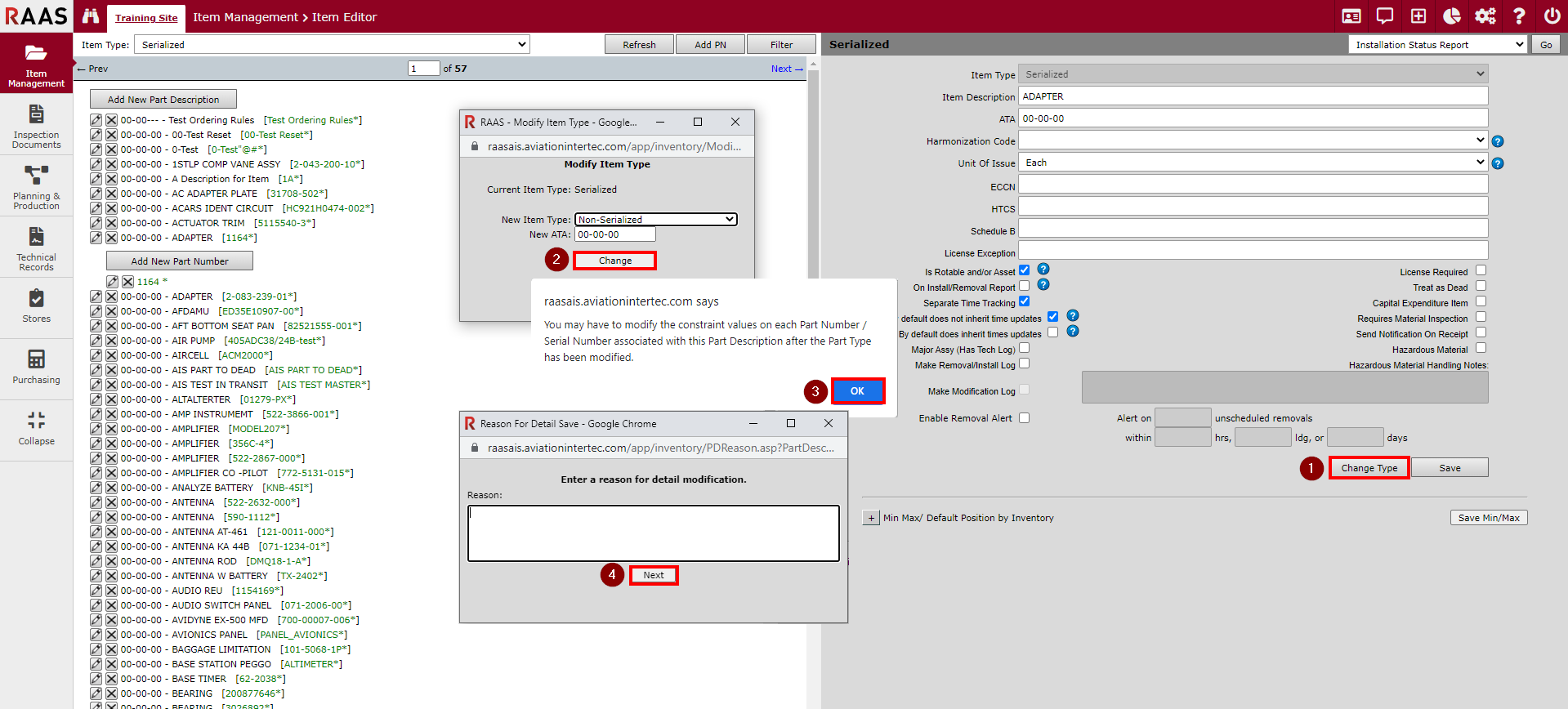
Change Item Type
An Item Type can only be changed at the Part Description level. When changing an Item Type from a consumable, the part must have an on-hand quantity of at least one (1) because one Serial Number is created for each on-hand quantity under the specified Part Description. For example, if there were 3 consumable items on hand being converted to the Serialized type, 3 Serial Numbers would be created under the specified Part Description.
If you have already located the part in question, click on the magnifying glass at the part description level to display the part description details window and proceed to step 1; otherwise, use the Navigation method above.
-
Click on the Change Type button.
-
Select the New Item Type and New ATA. Click Change.
-
Read the information window and click OK.
-
Enter the reason for changing the item type for this part description. Click Next.
The windows will refresh and display the part description under the new item type.
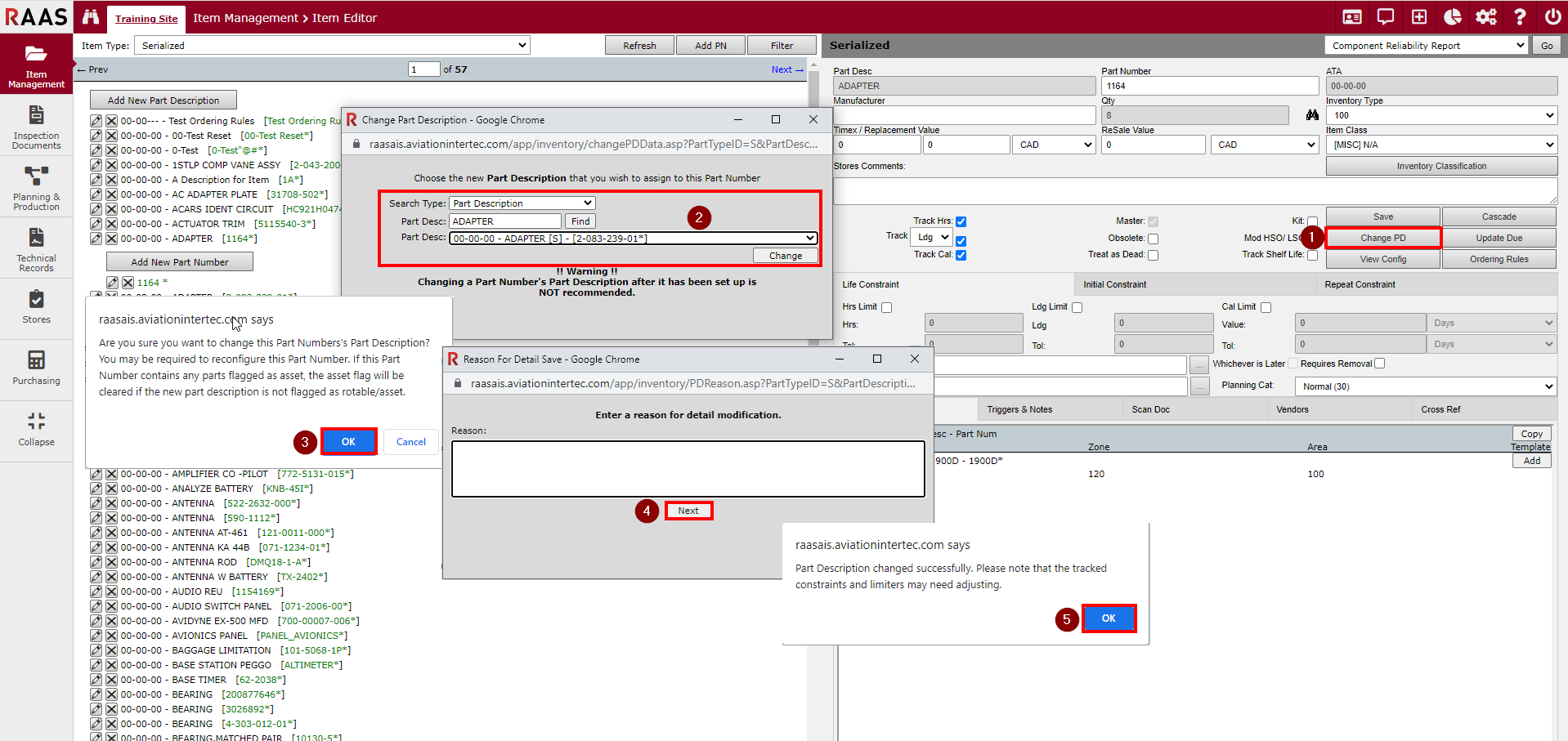
Change Part Description
A Part Number's Part Description can only be changed at the Part Number level. You can NOT change the part description for a Master Part Number if there is also an alternate Part Number under the same Part Description without first reassigning another Part Number as the Master Part Number. Changing a Part Number's Part Description after it has been set up is NOT recommended.
If you have already located the part in question, click on the magnifying glass at the part number level to display the part number details window and proceed to step 1; otherwise, use the Navigation method above.
-
Click on the Change PD button.
-
Enter the selection criteria and click Find. Select the applicable Part Description. Click Change.
-
Click OK to change this Part Number's Part Description.
-
Enter the reason for changing this Part Number's Part Description. Click Next.
-
Click OK to information popup. The windows will refresh and display the Part Number under the new Part Description.
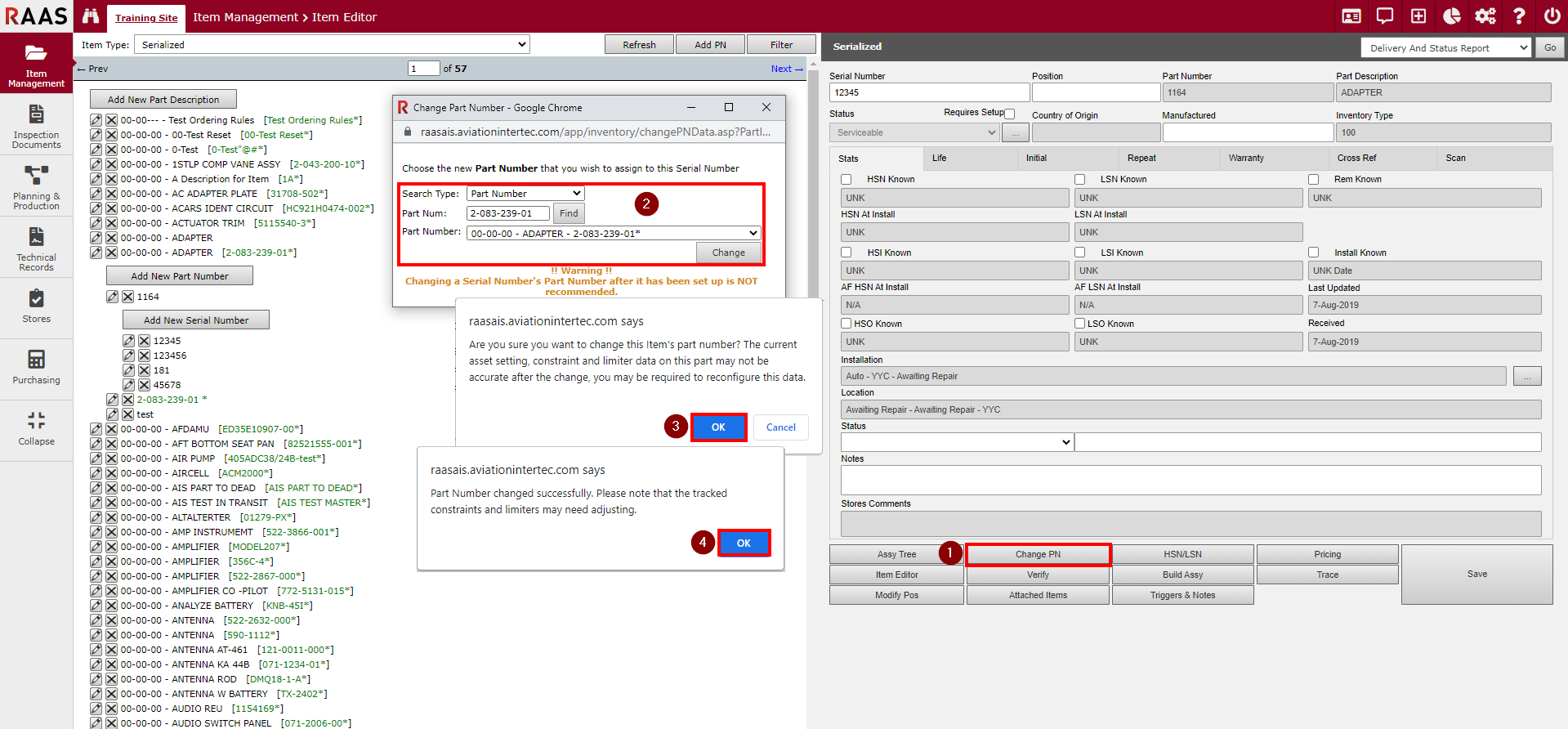
Change Part Number
A Serial Number's Part Number can only be changed at the Serial Number level.
If you have already located the part in question, click on the magnifying glass at the serial number level to display the serial number details window and proceed to step 1; otherwise, use the Navigation method above.
-
Click on the Change PN button.
-
Enter the selection criteria and click Find. Select the applicable Part Number. Click Change.
-
Click Yes to change this Serial Number's Part Number.
-
Click OK to information popup. The windows will refresh and display the Serial Number under the new Part Number.