Signature Requirements (previously known as Stamps) are used when adding Rectifications to Job Cards in RAAS and on TMI Entries in Technical Records. Each Job Card specifies which Signature Requirements apply, and the user must select the appropriate Signature Requirement and enter their password in order to apply their digital signature for the Signature Requirement.
Adding a Signature Requirement:
-
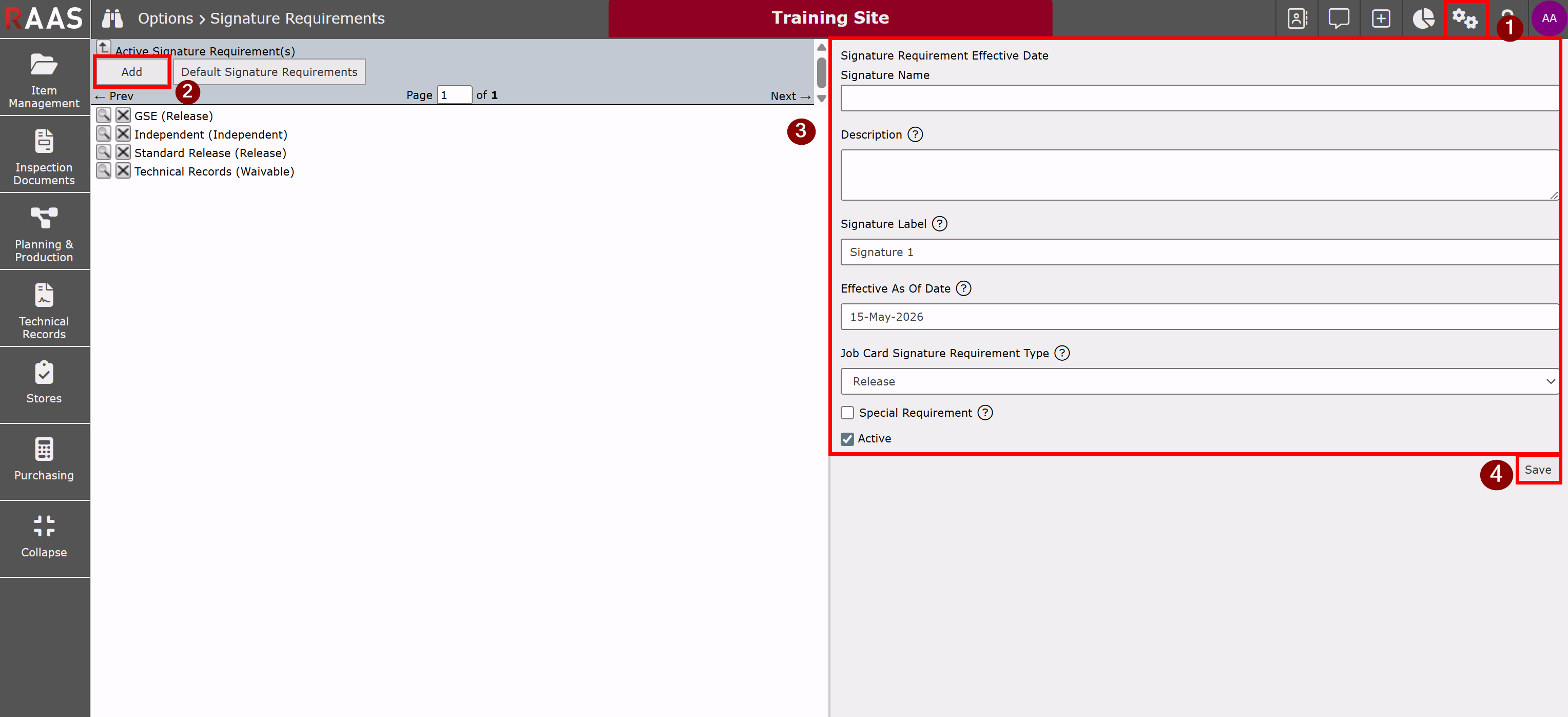
Click on the Settings menu and select Signature Requirements.
-
Click Add.
-
Enter the Signature details.
-
Click Save.
Notes:
-
The Signature Name will appear in the selection of Signature Requirements and on any reports that include Signature Requirement names.
-
The Description should include text to help users when selecting Signature Requirements. This text is visible in the Rectification Signature Requirements selection window when hovering over the Signature name and also during the final Sign/Save Required Signatures step as the Release Statement.
-
The Signature Label identifies the signature name and appears in the TMI Entry Wizard under Job Card details and TMI entry.
-
The Effective As Of Date indicates when this version of the Signature Requirement became effective. Job Cards created prior to this date will not be able to select this Signature Requirement unless there is an earlier version which is dated prior to the Job Card creation date.
-
The Job Card Signature Requirement Type defines whether a requirement is Release, Independent, or Waivable. Release and Independent types are system-controlled, require signature authority, and cannot be duplicated or edited. A user with appropriate permissions may mark a Signature Requirement as Not-Applicable (Waivable), however, Release and Independent types cannot be waivable.
-
The Special Requirement flag drives special requirements options which are optionally used to drive reporting options.
-
The Active flag indicates that this Signature Requirement is active and available for selection when creating Job Cards. Inactive Signature Requirements retain their history but are no longer selectable when creating Job Cards.
Editing a Signature Requirement
-
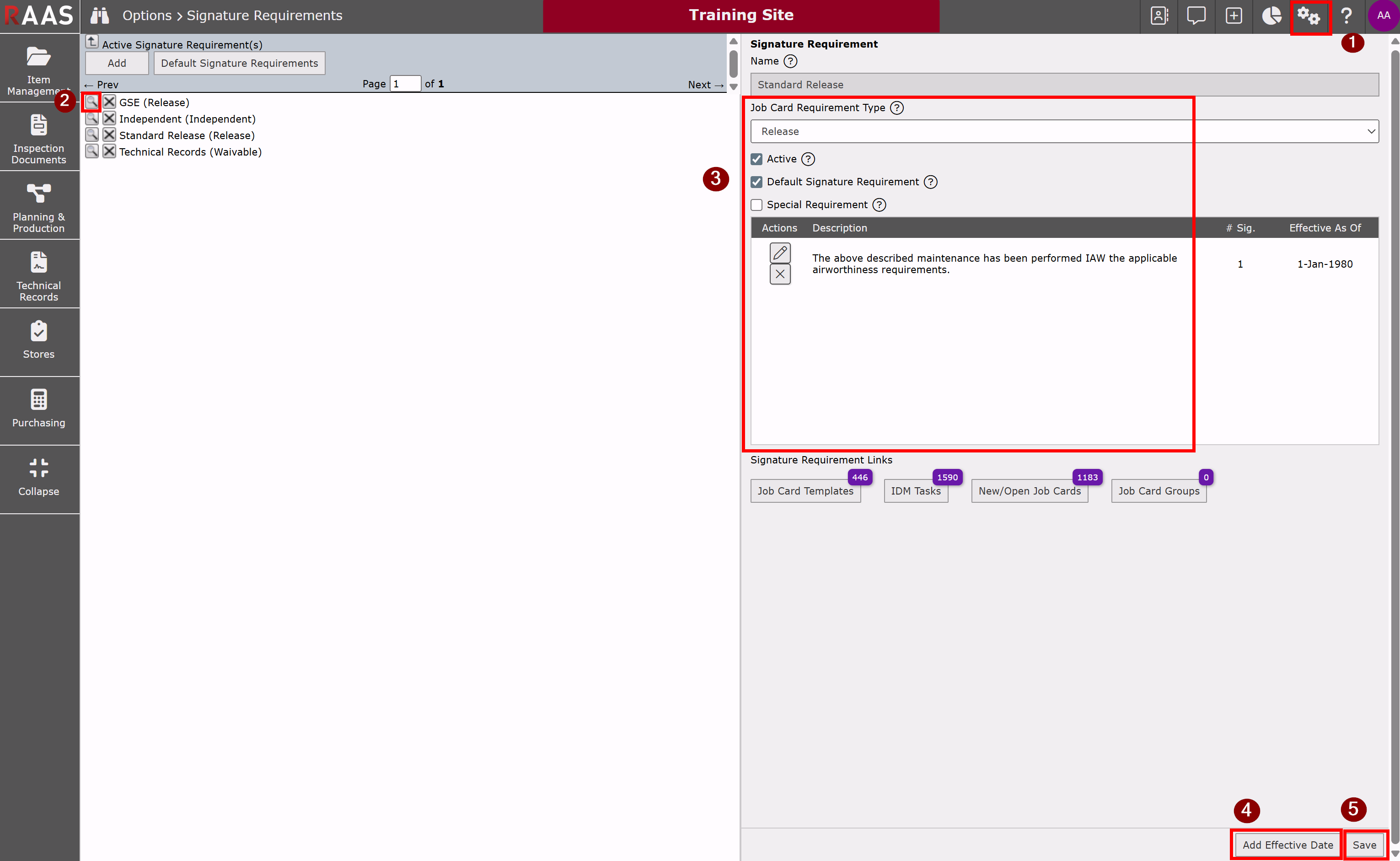
Click on the Settings menu and select Signature Requirements.
-
Click the magnifying glass next to an existing Signature Requirement.
-
Change the selections, as required.
-
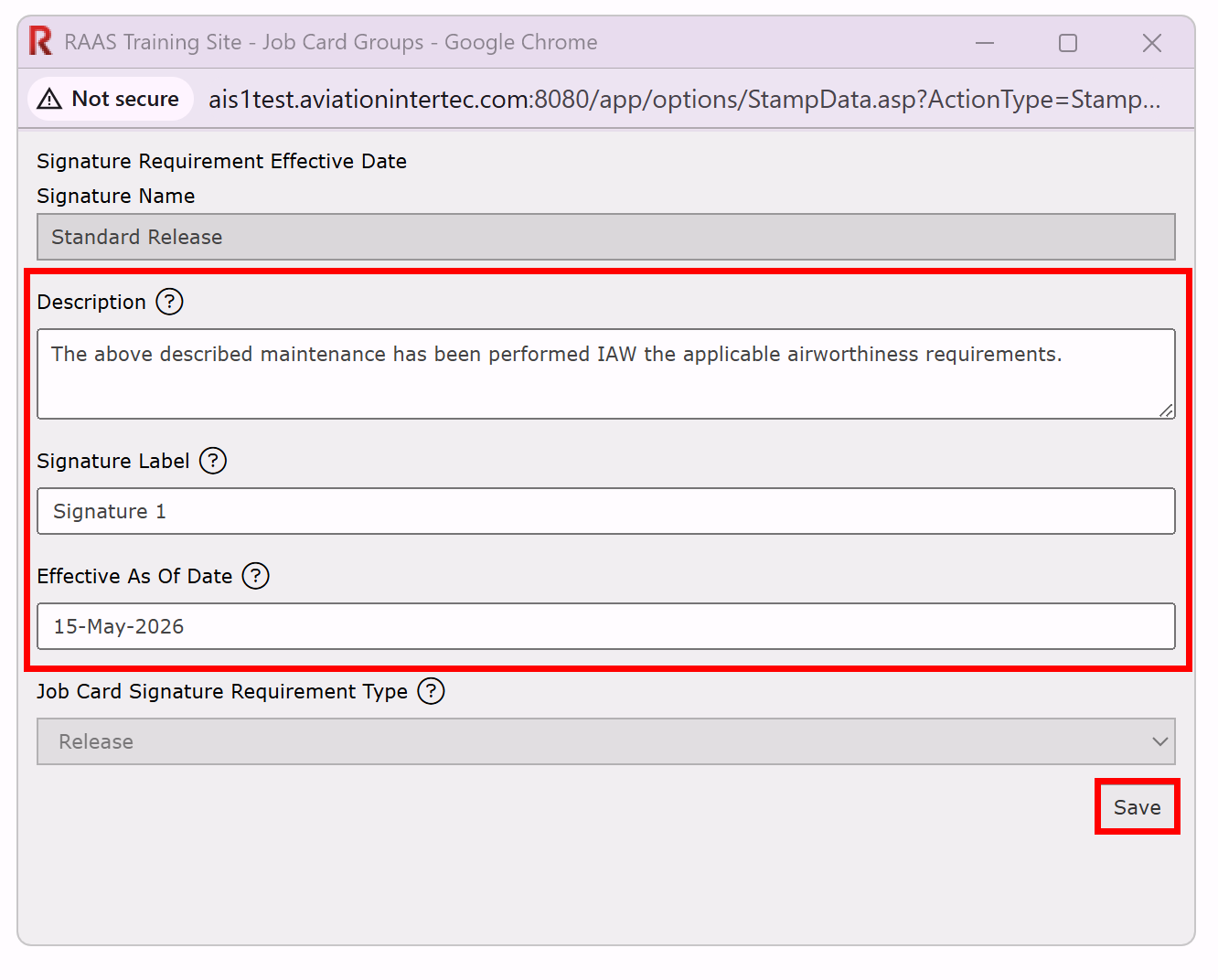
If changes are required to the Description, Signature Label, or Effective Date, click Add Effective Date to add a new Description.
-
Enter the Signature Requirement Details
-
Click Save.
Active and Inactive Signature Requirements Navigation
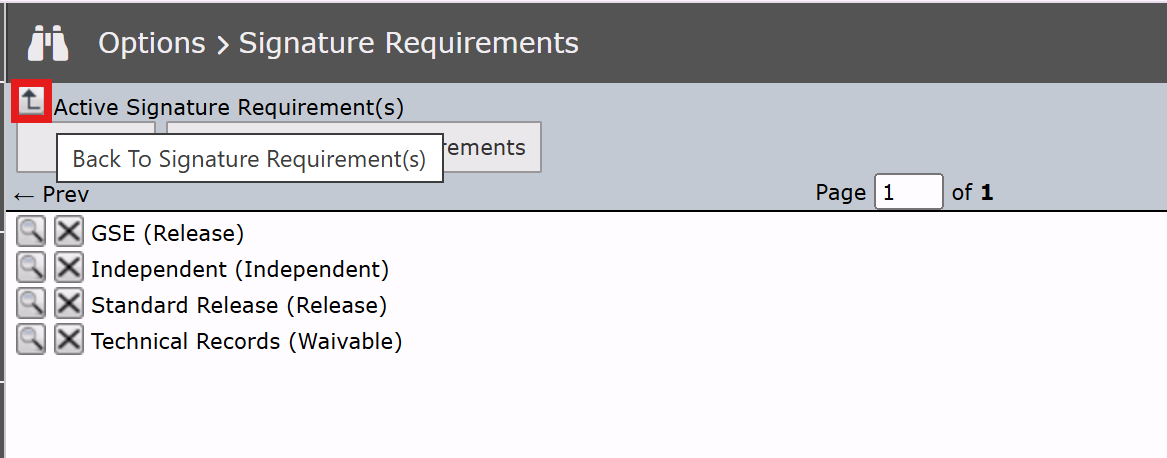
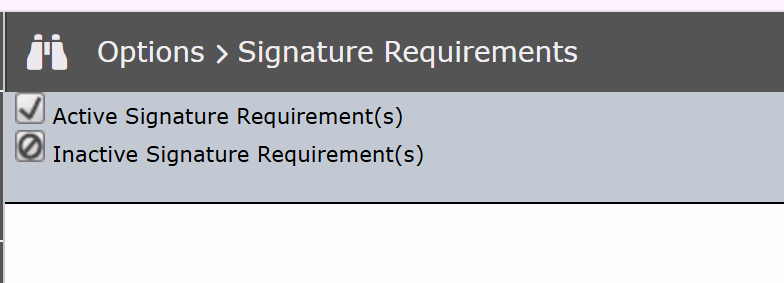
The Active Signature Requirement(s) are shown by default in the Signature Requirements options. To view Inactive Signature Requirements, click the Back to Signature Requirement(s) button, then click Inactive Signature Requirement(s). Repeat these steps to switch back to the active list.
Default Signature Requirement
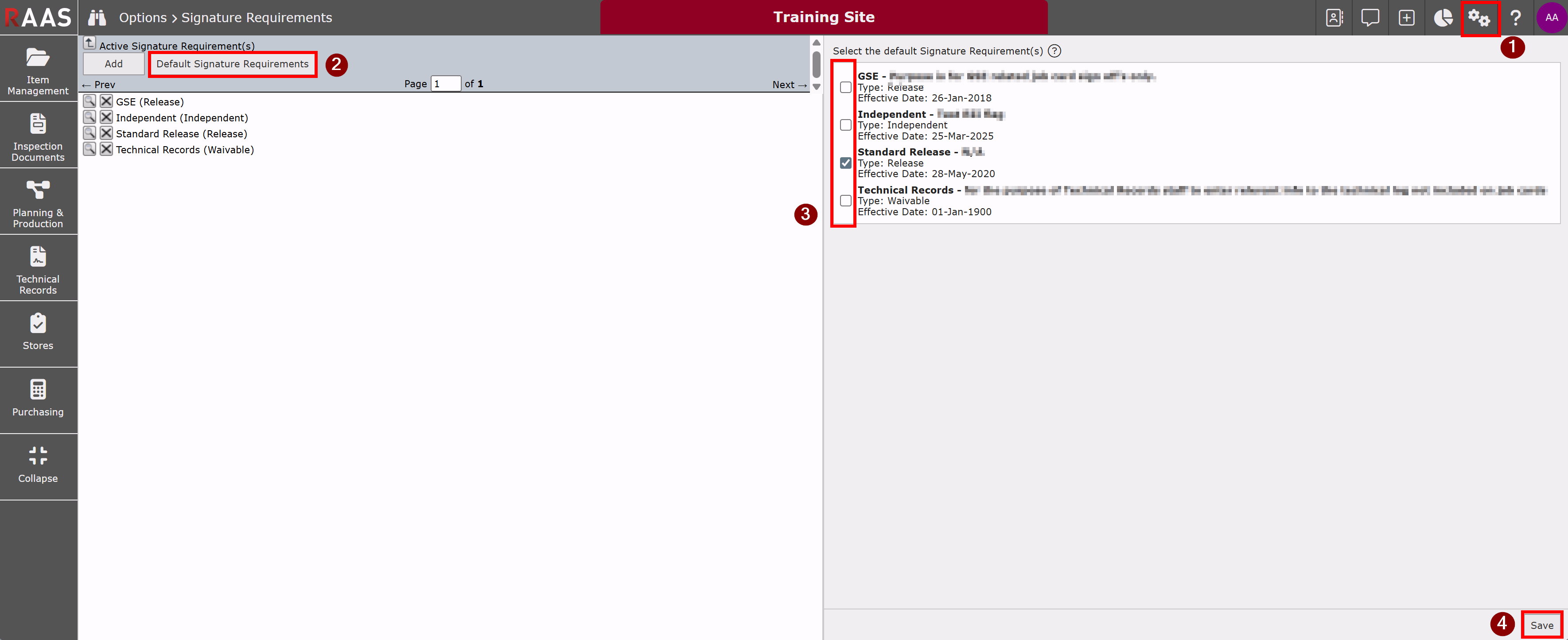
The Default Signature Requirements allows to set the company‑wide default Signature Requirement(s). The selected Signature Requirement(s) will be automatically applied to any new Job Card that does not have Signature Requirements set by its Job Card Template or Job Card Group.

Editing Default Signature Requirement
-
Click on the Settings menu and select Signature Requirements.
-
Click the Default Signature Requirements button.
-
Change the selections, as required.
-
Click Save.